Does an LED Screen Need a Computer to Play Content?
Published 2026-11-12 · By Arclumin Team
An LED screen can show a live picture from a computer or use a compatible player to run a stored playlist. Learn which devices need to stay connected.
The short answer is no
An LED screen needs something to provide its picture, but that something does not have to be a computer. A laptop is convenient if you want to show your desktop or click through slides. A compatible media player can be a better fit if you want a screen to repeat the same announcements throughout the day. The practical question is where the picture comes from and what needs to stay running while people watch it.
People sometimes see a computer during installation and assume it will always have to be there. It may have been used to configure the display, to send a playlist, or to show a picture live. These are three different jobs. Ask the installer which job the computer is doing before you decide whether it needs a permanent place beside the screen.
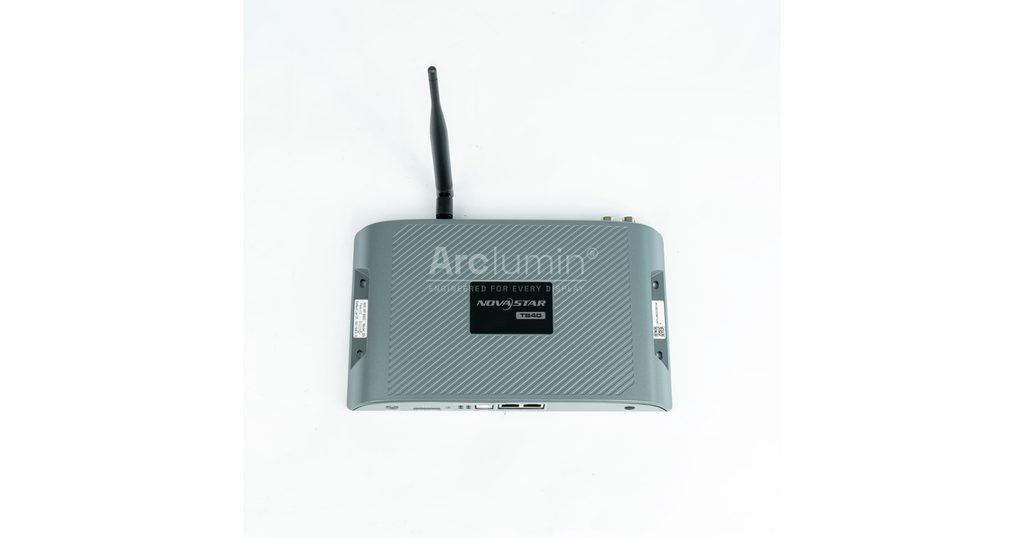
Arclumin media player.
When you want to show a live picture
Suppose a presenter is using a laptop for a meeting. When they advance a slide, the screen needs to show that change straight away. The laptop supplies the live picture, and compatible control equipment passes that picture to the display. If that laptop is the active source and it goes to sleep, the live picture will stop until the source returns or another source is selected.
The same idea applies to other live sources. A camera, presentation system or compatible playback device may supply the picture instead, depending on the connections and equipment available. Check what the screen system accepts before assuming any device can plug straight in. For a live event, try the actual source and the intended connection before the audience arrives, so you can spot simple issues like the wrong input being selected.
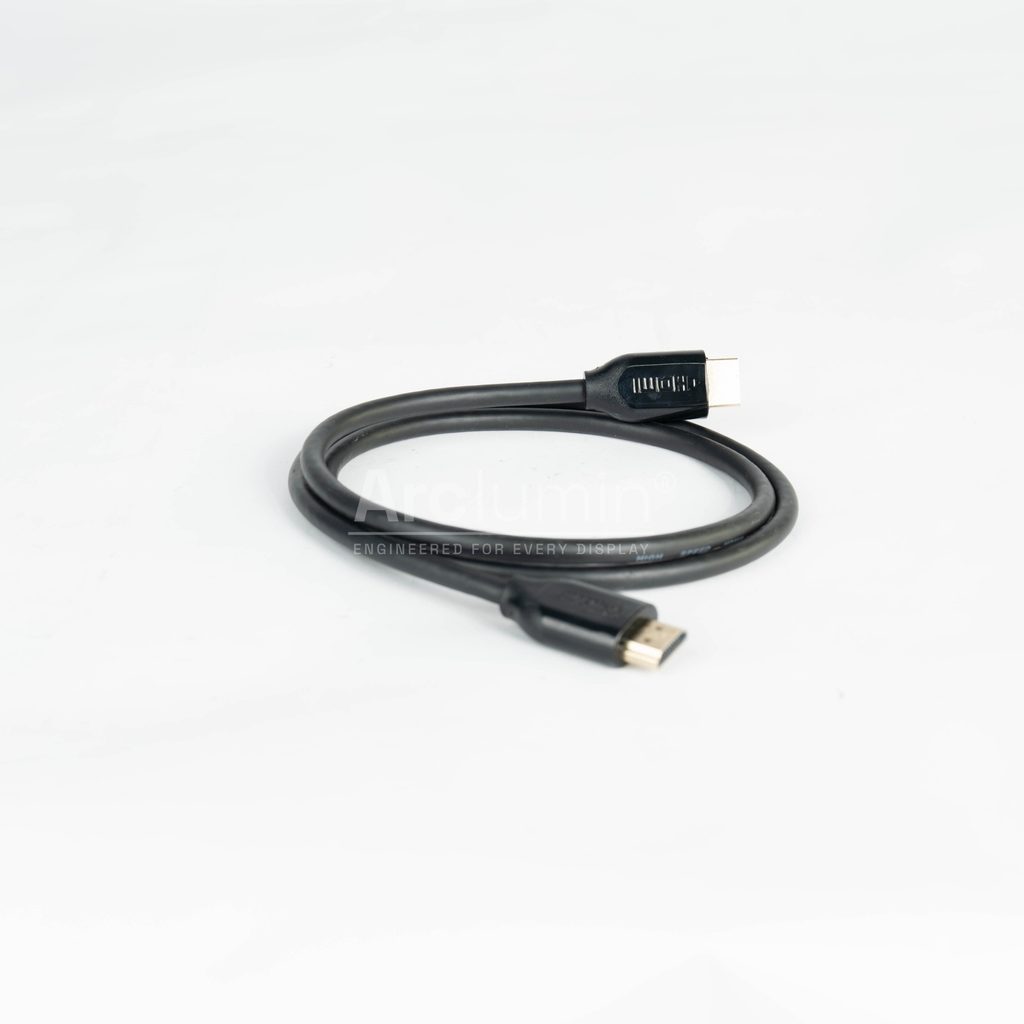
HDMI cable for an LED display setup.
When you just want a playlist
Now imagine a reception screen that shows opening hours, a welcome image and a short video on repeat. If the system has a player that stores content and runs its own playlist, the files can be loaded in advance. The player then sends the picture while it is running. A separate computer used to prepare or upload those files does not normally have to stay connected once the content has been saved to the player.
Do not assume that every player offers the same way to load content. Some setups are managed locally and others allow updates over a network, depending on the model and how it was installed. If the screen needs to play without an internet connection, ask whether the files are actually stored locally. A stored video and a live web page may look similar on the screen, but their connection needs are quite different.
Check what comes with the screen
An LED display and the device that plays content can be supplied together or separately. For example, when considering a WG Welcome Glow poster screen, ask which player or control equipment comes with the particular configuration. Request a simple explanation of how the picture gets from your file to the screen. That makes it easier to tell whether you are buying a standalone playback setup or one that expects an external source.
If you already know the equipment model, look for the matching guide in Arclumin’s downloads. Use the guide for the system you actually have, since a similar name does not guarantee the same menu or playback method. Keep a note of the device model and the way staff should update content. This is useful when a different person takes over the screen later.
Choose for the people using it
For a meeting room, the person using the screen may bring a different laptop each day. In that case, a clear instruction card beside the connection point can be more useful than a long manual. Write down where to plug in, which input to select and who to ask for help. Have someone who did not install the system try those instructions before you call the setup finished.
For a shop or reception area, it may be the same small team updating the same type of material every week. Ask them to upload a sample and check the screen afterwards, rather than leaving the demonstration to a technician. Make sure they know how to confirm the new playlist is running and where to find the previous file if they need it again.
If a room needs both live and stored content, ask for a demonstration of the switch between the two. Check what staff need to do before a presentation starts and how they return to the usual playlist afterwards. The fewer decisions they have to make on the spot, the easier the screen will be to use.
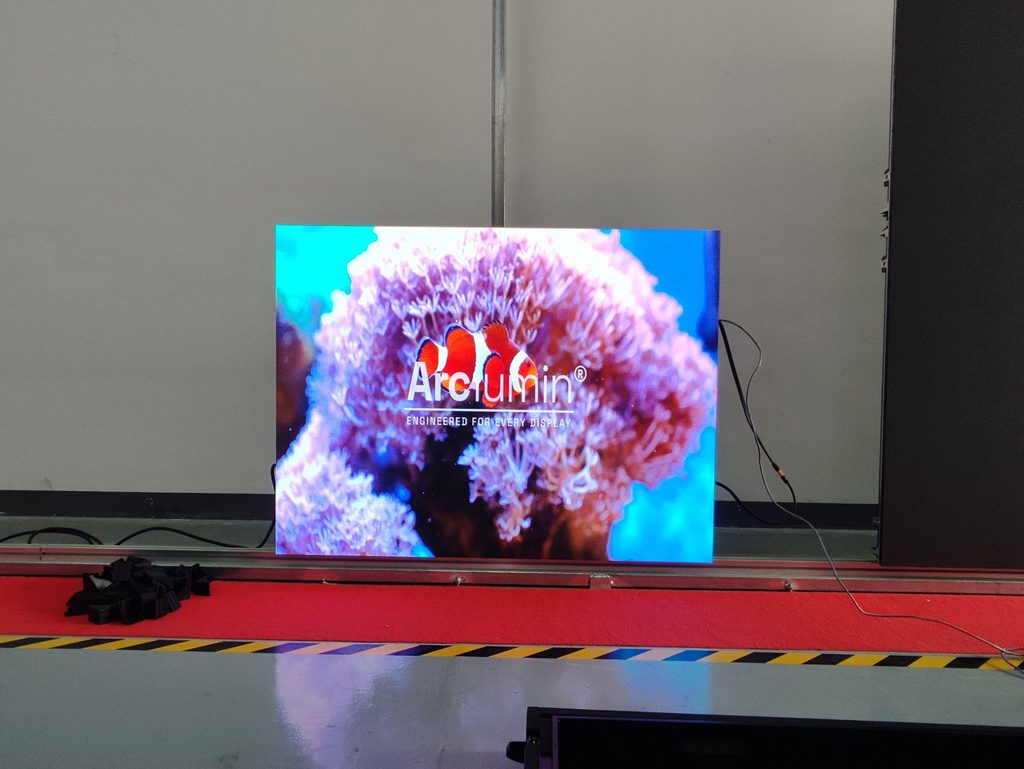
Arclumin display playing video.
Try a quick handover test
At handover, ask the installer to show you the normal playback routine with one of your own files. If the screen is supposed to run independently, confirm that the file has been saved to the player and ask the installer to demonstrate playback with the setup laptop disconnected. Also find out what the screen is expected to do after a normal restart, since resuming playback depends on the equipment and its settings.
There is no need to start with a long list of features. Describe whether you want to show live slides, run a stored playlist, or do both, and tell the supplier who will operate it. Share that plan and your screen model with Arclumin for help choosing a playback setup that your team can use day to day.
For project inquiries, please contact your dedicated Arclumin Sales Consultant. Our team operates across time zones to support projects in Europe, North America, Africa, Australia, and markets worldwide.
WhatsApp +86 136 8235 1211 · 7×24 — we reply within 24 hours.

 SG Steady GlowIndoor Fixed LEDP1.25 – P4
 PL Pure LightIndoor Fixed LEDP1.25 – P1.86COB Fine Pitch LED→
 OG Obsidian GlowCOB Fine Pitch LEDP0.7 – P1.86View all product series →Not sure which series fits your project? Get a Recommendation →