One LED wall can show two sources when compatible equipment puts both pictures into one layout. Learn how to plan and test the windows before a show.
Yes. One LED wall can show a presentation on the left and a live camera feed on the right. The wall still displays one complete pixel canvas. Somewhere upstream, a device or an application places the two pictures into that canvas before the image reaches the display.
A useful way to picture the system is to imagine a TV director deciding what belongs inside one frame. The director can give half the frame to each feed, make the speaker full screen or put the speaker in a corner while slides keep taking most of the space. The LED wall just draws the result it receives. That distinction is helpful when someone asks whether a wall supports two sources, because the answer depends on the equipment creating the frame as much as the screen connected to it.
Decide where to combine the pictures
A laptop can build the layout when both pictures are already inside one application, such as a presentation with a video window. It sends one finished image to the wall. If the two sources are independent, such as a camera and a presenter’s laptop, use a switcher or video processor that can show both sources at the same time. Two inputs on the back of a device may simply let you switch between sources, so check its simultaneous window capability in the control system downloads.
Start by listing where the two pictures come from and who must control them. For example, a prerecorded clip and a slide deck can be managed from one presentation computer if the software can arrange them as required. A camera operated by a separate team and a guest laptop are a different workflow because each brings its own external feed. Ask the operator whether that setup also needs to switch either source to full screen during the event. Changing layouts on cue should be part of the equipment and rehearsal plan.
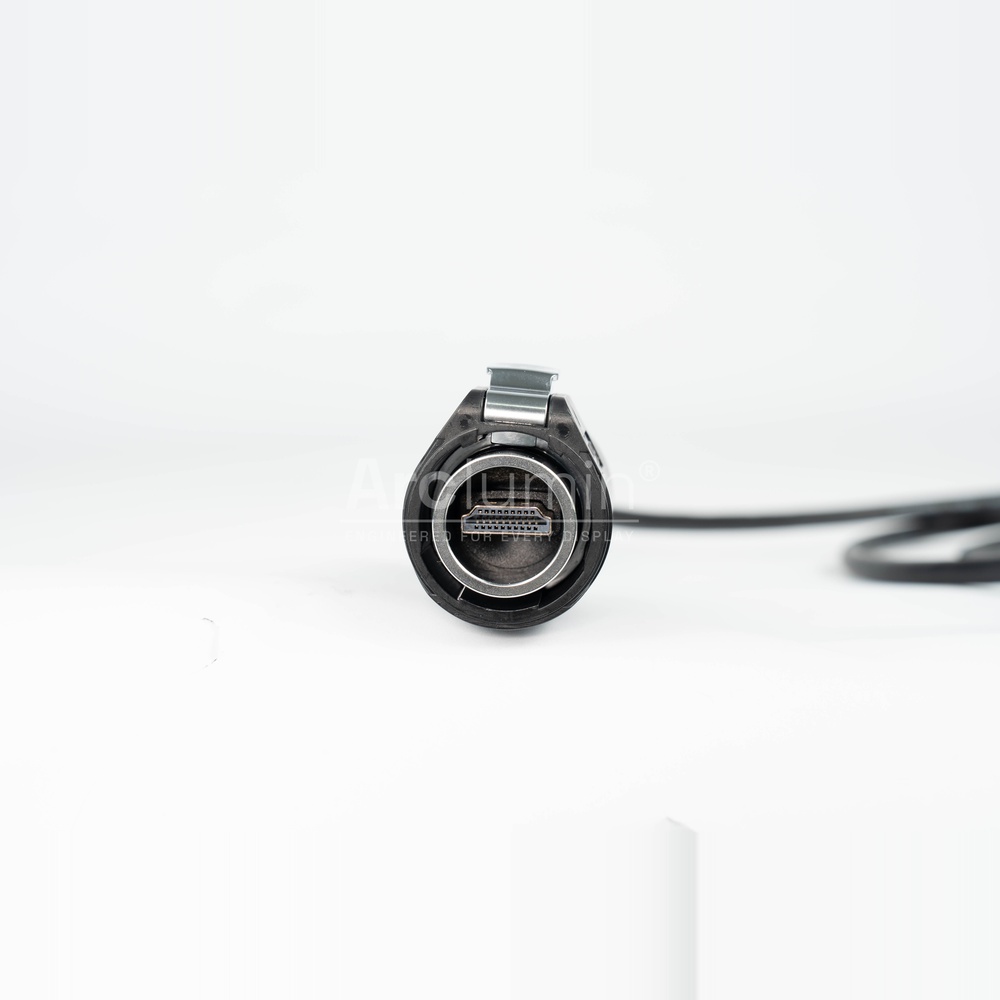
HDMI lead with its connector visible for a video source
Choose a layout that fits the canvas
Side by side gives each source its own region. Picture in picture gives one source most of the wall and places the other in a smaller window. A standard widescreen slide squeezed into a tall region can become hard to read. Ask for the LED wall’s actual pixel width and height, and keep the original shape of slides or faces unless you intentionally crop them.
Make a simple layout drawing that includes the whole wall, both windows and any title area. If the two windows share the same width but the sources have different shapes, decide whether to use empty space, trim the edges or redesign one source for its window. For slides, compare the proposed text size with the smallest important type in the presentation. On camera, leave enough room around the speaker so a crop does not remove gestures that matter. Review the plan from the seats as well as from the control desk.
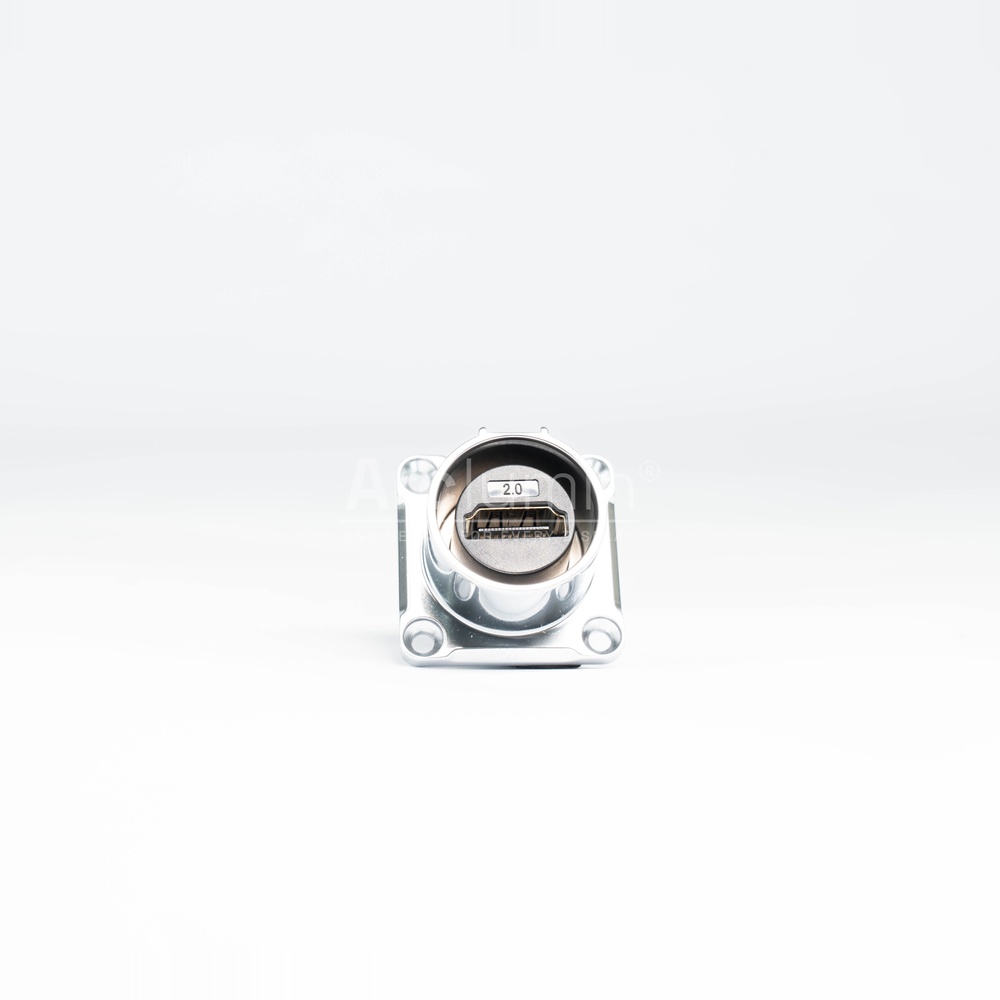
HDMI panel receptacle shown from the front
Check the path from source to screen
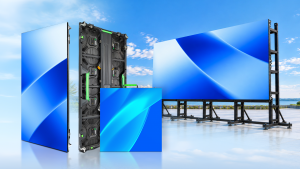
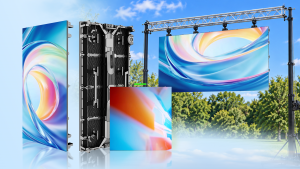
Trace each connection from the source to the equipment that combines the images, then to the controller and wall. Verify that each source can supply a format the next device accepts. Check the specific input, window, output and loading limits together. The TL Traveling Light series gives examples of cabinets that can form a rental wall, while the processing equipment determines what layouts its video inputs can support.
Different inputs may arrive with different frame rates, resolutions or audio arrangements. Ask the operator what formats will be supplied and how the combining device handles them together. Confirm who controls audio so an open presentation feed and a camera microphone do not unintentionally play over each other. Keep a record of which cable lands on which input, which preset recalls the layout and which output goes to the wall. This gives the crew a clear starting point when a picture appears in the wrong place.
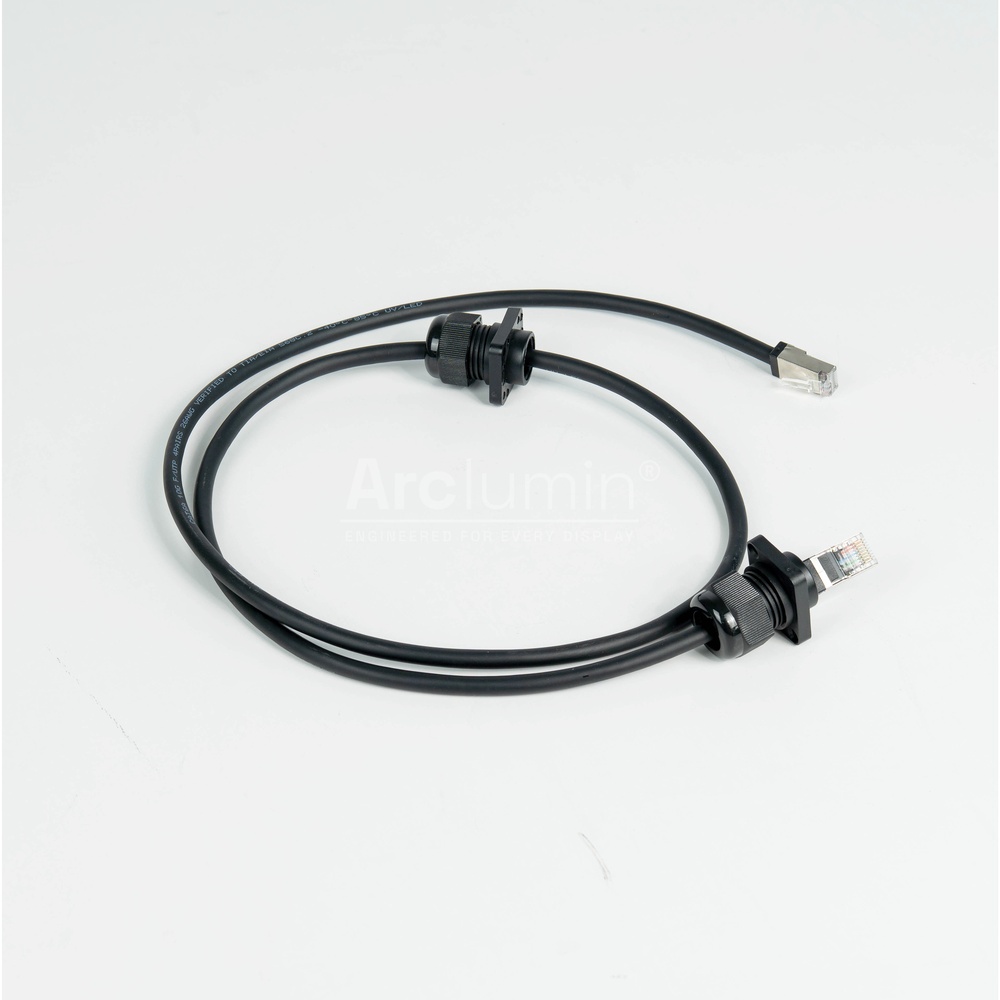
Coiled network cable with connectors
Rehearse with both feeds present
Start with a labelled test picture in each window. Confirm that the left and right sources reach the intended positions, then play the actual slides and camera feed. During the rehearsal, unplug or mute one source in a controlled test and see what the system displays in its place. Decide whether a standby image or a full-screen source is the right fallback for that show.
Before handing over, save the approved layout and label the source cables in the same way as the cue sheet. Someone should be able to answer which source is live, what will replace it if it drops and how to restore the two-window layout after a full-screen cue. If the sources or screen change at the venue, repeat the simple test instead of assuming the previous preset still fits. A short rehearsal with the team operating the screens is the most direct way to confirm the intended result.
What to confirm before you proceed
Write a short show plan that names the sources, the person responsible for each one and the layout used at each point. A speaker’s laptop might start full screen, then share space with a camera when questions begin. A graphic prepared for that shared layout can move important text away from the edge and leave the guest window clear.
If the room also has a separate confidence monitor or a stream, check what those outputs should show individually. Programming a layout for one output does not establish that the other outputs will have the same framing. Review the actual wall before the audience arrives, because a clean preview at the control desk may hide small text or crop that becomes obvious from the seats.
For project inquiries, please contact your dedicated Arclumin Sales Consultant. Our team operates across time zones to support projects in Europe, North America, Africa, Australia, and markets worldwide.
WhatsApp +86 136 8235 1211 · 7×24 — we reply within 24 hours.

 SG Steady GlowIndoor Fixed LEDP1.25 – P4
 PL Pure LightIndoor Fixed LEDP1.25 – P1.86COB Fine Pitch LED→
 OG Obsidian GlowCOB Fine Pitch LEDP0.7 – P1.86View all product series →Not sure which series fits your project? Get a Recommendation →