An LED screen can show still images, text, menus, schedules and live data. Learn how to prepare and manage each kind of content.
An LED screen can show still images, text, schedules, menus, charts and information that updates during the day. A screen near an entrance can greet visitors in the morning and show room directions later. The content source prepares the picture, and the screen draws that picture with its pixels.
Think of the display as a surface that draws the picture it receives. A menu can be prepared as a single clear graphic, a live clock can be generated by another device, and a conference welcome can be a slide with a name and a room number. The image may stay still even though the system continues sending it to the screen. Choosing the content source begins with a question about the message: does it stay the same, change at set times or change when something happens?
Use graphics for messages people can read at a glance
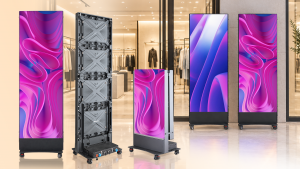
A price board, a sponsor logo or a wayfinding arrow can work well as a still image. Keep the most important words large and check their contrast against the actual background. Design to the screen’s pixel canvas so letters and logos remain readable after scaling. WG Welcome Glow is an example of a digital LED poster series for applications where the content is often viewed vertically.
For a sign that people pass on foot, decide what they must understand before they move on. One directional arrow and one destination may be enough for that moment, while a directory for people who stop can include more detail. Use test artwork at the true pixel dimensions, because an image that looks clear on a desktop monitor may lose readable edges when reduced for the LED screen. Keep a source file so the team can revise prices or replace a logo without rebuilding the whole image.
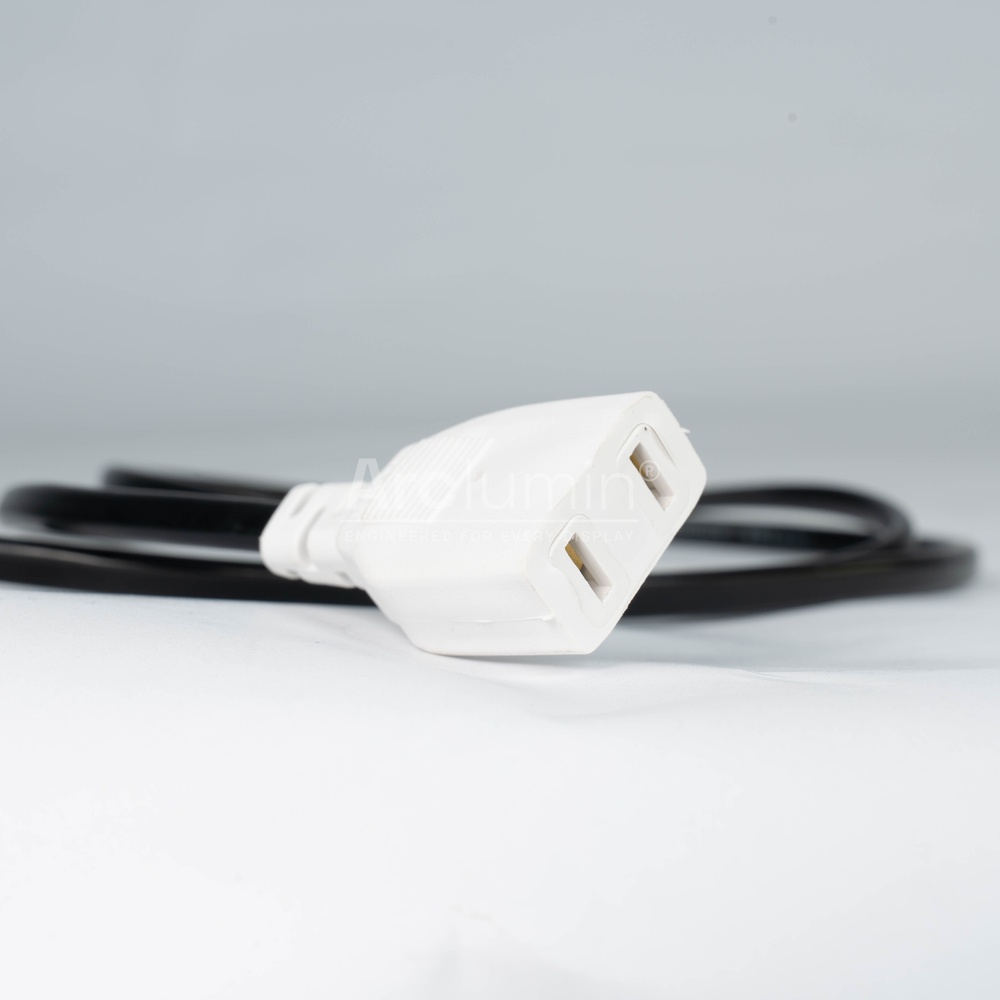
USB cable photographed with the media player accessories
Schedule content for different times
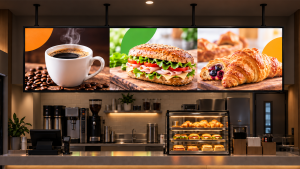
A compatible media player can rotate prepared slides and switch them on a schedule. A café could queue one menu for breakfast and another for later in the day, while a lobby could rotate building notices. Supported image formats and scheduling tools vary by player. Use the LED software downloads to find the application that matches your equipment.
A schedule needs a handover process as well as a playback plan. Check the player clock and time zone, confirm when the first and last items should appear, and decide what happens outside business hours. If files are updated through a network, check whether the existing program keeps playing when the connection is lost. If updates use a local device, label the approved file and keep a copy of what was on the screen before the change. Test one complete cycle before you depend on it.
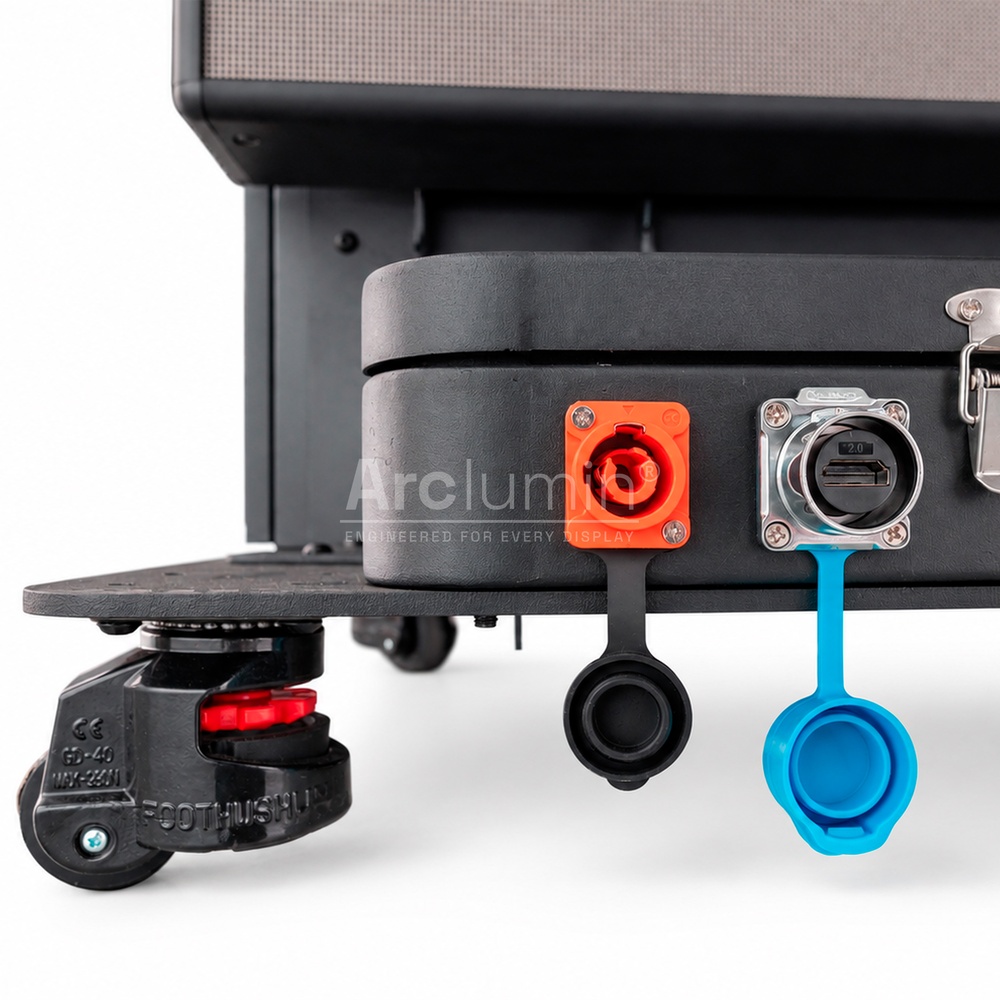
Connection ports and a caster at the base of a digital LED poster
Give live information a reliable source
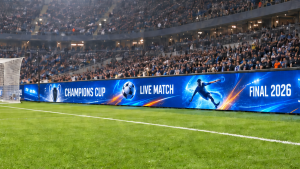
A meeting agenda can be a saved image, while a scoreboard that changes during a match needs an operator or a data feed. A dashboard needs software that turns incoming data into a viewable picture. For interactive content, a separate touch system, sensor or connected device may supply input when the screen itself has no input hardware. Decide what viewers should see if live updates stop.
For a data display, ask who owns the source and how fresh the information needs to be. A room status board can use data from a booking system, but the display will only be helpful if the feed and the layout agree on room names. A scoreboard can be operated locally when the event has a person watching the game and entering changes. Use a clear fallback message or a prepared image if viewers could otherwise mistake stale data for a current result.
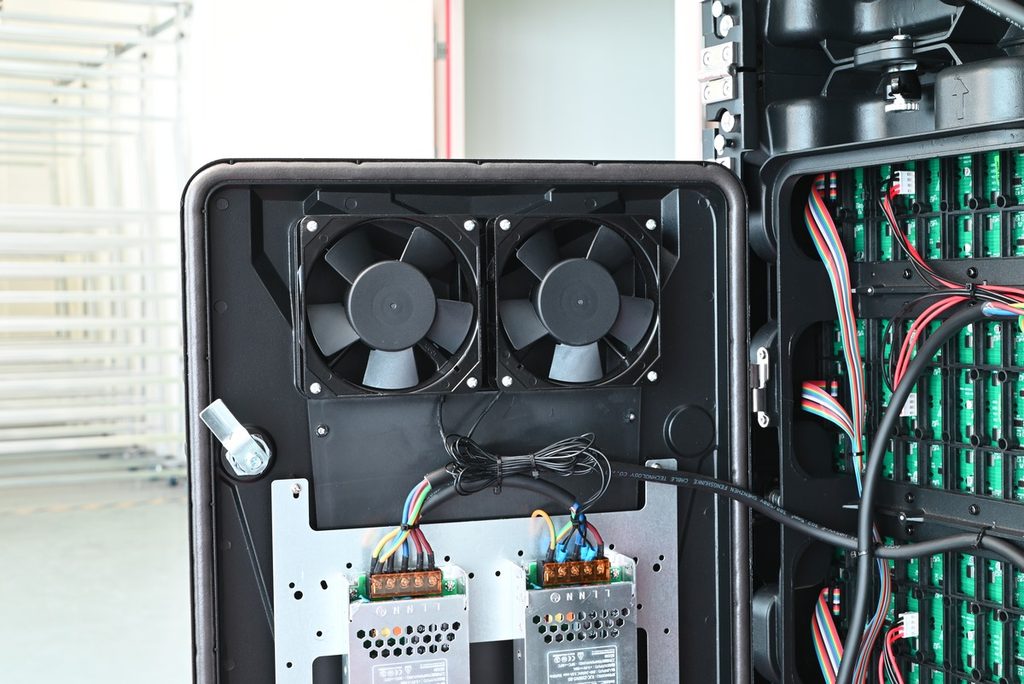
Electronics and cabling inside a digital LED poster
Preview the real content on the real screen
Test the darkest and brightest designs, the smallest important text and the longest item on the schedule. Walk to the positions where people actually stand and look at the screen under normal lighting. For daily operation, agree who updates the files and who can restore the previous version. The manuals and instructions library is useful when checking the exact playback workflow for compatible devices.
Ask a person who did not design the content to look at the screen and tell you what it says. If they cannot find the direction, time or price without help, simplify the layout before adding more material. Verify that any symbols are understandable and that the text remains clear when the display changes slides. After the equipment test, write down how to modify the content, who signs off changes and what file or program should be used if an update has to be undone.
What to confirm before you proceed
It helps to separate the normal program from content that only appears occasionally. The normal program might be a loop of opening hours and service information, while a change of room or an event notice needs an update on demand. Ask how staff can make that change without interrupting other useful messages.
If several displays serve a building, confirm whether they all show the same program or whether each location needs its own version. A screen at the door and another at a reception desk may need the same facts in different order. Keep the first test simple enough that the operating team can repeat it after any major edit.
For project inquiries, please contact your dedicated Arclumin Sales Consultant. Our team operates across time zones to support projects in Europe, North America, Africa, Australia, and markets worldwide.
WhatsApp +86 136 8235 1211 · 7×24 — we reply within 24 hours.

 SG Steady GlowIndoor Fixed LEDP1.25 – P4
 PL Pure LightIndoor Fixed LEDP1.25 – P1.86COB Fine Pitch LED→
 OG Obsidian GlowCOB Fine Pitch LEDP0.7 – P1.86View all product series →Not sure which series fits your project? Get a Recommendation →